Scrivener

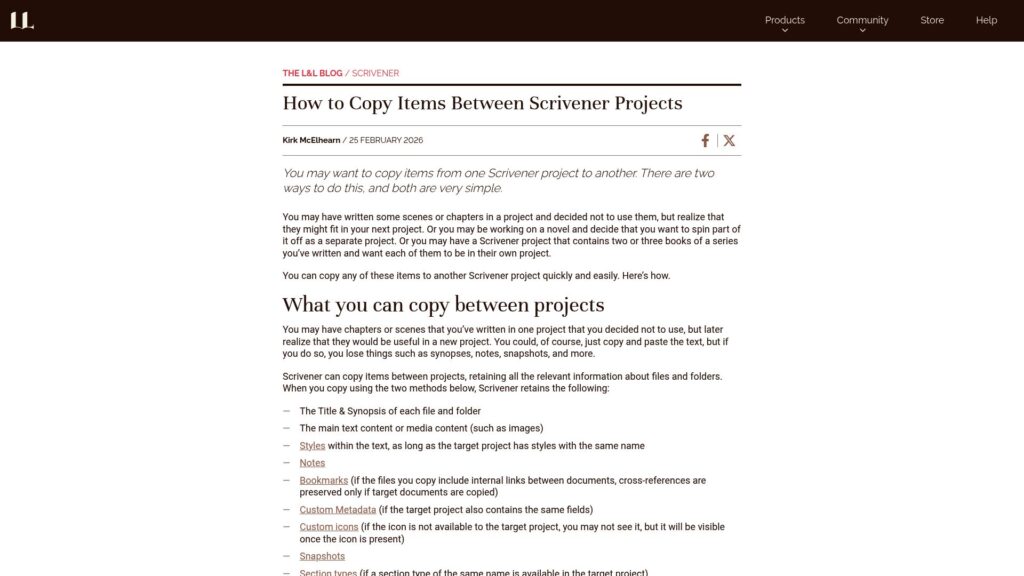
How to Copy Items Between Scrivener Projects

Copy items between Scrivener projects easily with two methods: drag and drop or using the Documents menu. Retain titles, synopses, text, styles, notes, bookmarks, metadata, custom icons, snapshots, and document status. You can also duplicate projects for series and delete unnecessary content while keeping characters and research intact.

https://www.literatureandlatte.com/blog/how-to-copy-items-between-scrivener-projects

How to Create, Edit, and Import Scrivener Styles on Mac and Windows

Learn to create, modify, and import styles in Scrivener for formatting text. Two types of styles exist: character and paragraph styles, allowing formatting of individual words or entire paragraphs. You can create new styles from selected text, modify existing styles, delete unwanted styles, and import styles from other projects. These features streamline the formatting process in Scrivener.

https://www.literatureandlatte.com/blog/how-to-create-edit-and-import-scrivener-styles-on-mac-and-windows

How to Import Notes to Scrivener From Apple Notes, Obsidian, Notion, or Other Note-Taking Apps

Export notes from other apps to Scrivener by copying/pasting or exporting in formats like PDF, RTF, or Markdown. Popular note-taking apps like Obsidian and Notion offer various export options, but formatting may differ. To batch import Markdown files into Scrivener, organize them into a folder, compile them, and convert as needed. For advanced users, tools like Pandoc can facilitate file conversions.

https://www.literatureandlatte.com/blog/how-to-import-notes-to-scrivener-from-apple-notes-obsidian-notion-or-other-note-taking-apps

Write Now With Scrivener, Episode No. 59: Brad Bigelow, Biographer

Brad Bigelow wrote a biography of overlooked author Virginia Faulkner, who wasn't related to William Faulkner but had a notable career in writing and Hollywood. His research faced setbacks due to the pandemic, leading him to focus on online resources and archived materials. The biography is structured in 26 short chapters to enhance readability, highlighting Faulkner's life and career, despite her works being largely forgotten. Bigelow found Scrivener essential for assembling the biographical content during his writing process.

https://www.literatureandlatte.com/blog/write-now-with-scrivener-episode-no-59-brad-bigelow-biographer

How To Revise the Draft of Your Scrivener Project on an Ebook Reader

Export Scrivener project as ePub to revise on Kindle or Kobo. E-readers help view drafts differently; revision involves big-picture fixes and specific changes. Exporting is straightforward; sideload or email files to devices. Use highlights for notes, but can’t edit text directly on e-reader. Kindle allows exporting highlights, while Kobo offers limited options. Choose device based on features and revision needs.

https://www.literatureandlatte.com/blog/how-to-revise-the-draft-of-your-scrivener-project-on-an-ebook-reader

How to Use Blank Styles in Scrivener for Revision

Use blank styles in Scrivener to mark text for revision without altering formatting. Blank styles serve as flags for sections you want to improve, such as dialogue, wording, or content repetition. Create them by selecting text without changing its format; apply and remove via the Style menu. You can search for text marked with these styles using the Find by Formatting feature.

https://www.literatureandlatte.com/blog/how-to-use-blank-styles-in-scrivener-for-revision

5 Ways to Record Notes in Your Scrivener Project

Scrivener offers tools for recording project notes during writing and revision, helping organize ideas, changes, and research. Key methods include: using the Inspector for scene-specific notes, inserting comments for text-specific feedback, utilizing the Scratchpad for general jots, and storing files in a dedicated Notes folder for easy access. These features facilitate effective project management throughout the writing process.

https://www.literatureandlatte.com/blog/5-ways-to-record-notes-in-your-scrivener-project

Write Now With Scrivener, Episode No. 58: Tessa Hulls, Pulitzer Prize Winning Graphic Artist & Memoirist

Tessa Hulls, artist/writer, won the 2025 Pulitzer Prize for her graphic memoir Feeding Ghosts. The memoir explores her family's history across generations and continents, shaped by personal and historical trauma. The creation process spanned nine years, heavily impacted by the pandemic, which challenged her mental health but ultimately strengthened the work. Hulls utilized Scrivener innovatively to manage her process, integrating visual elements to guide the memoir's narrative structure. She expresses no plans for another book, feeling content with the one story that has haunted her.

https://www.literatureandlatte.com/blog/write-now-with-scrivener-episode-no-58-tessa-hulls-pulitzer-prize-winning-graphic-artist-memoirist

How to Self-Publish Your Books to Amazon, Apple, Barnes & Noble, Google, and Kobo

Self-publishing books on major ebook platforms is straightforward. Authors can either use aggregators or publish independently. Key platforms include Amazon, Apple Books, Barnes & Noble, Google Play, and Kobo, each with unique characteristics. Essential assets include an EPUB file, cover art, and an ISBN. Steps vary by platform but generally involve uploading the manuscript, adding metadata, setting prices, and managing promotions. While Amazon dominates the market, diversifying across platforms can maximize visibility and revenue. Affiliate programs can also boost income. Overall, self-publishing requires effort but can yield substantial returns.

https://www.literatureandlatte.com/blog/how-to-self-publish-your-books-to-amazon-apple-barnes-noble-google-and-kobo

Scroll to Top